

Descripción
Table Addons for Elementor is a lightweight Elementor table plugin that adds a Table widget to the Elementor page builder. Build pricing tables, comparison tables, schedules, specification sheets and data tables visually, with live preview, and style every row, column and cell without writing HTML or CSS.
Creating a table in Elementor usually means pasting HTML into a text widget or installing a heavy all-in-one addon pack. This plugin does one job well: it gives you a fast, flexible Elementor table widget with merge cells (colspan & rowspan), per-cell styling, striped rows, borders and typography controls, and it works with the free version of Elementor.
👉 Plugin Features | Ready-Made Table Examples | Documentation | Support | Get Pro
Why choose this Elementor table widget?
- Native Elementor experience – drag the Table widget onto any page, edit with live preview, and use Elementor’s own controls, global colors and typography.
- Unlimited rows, columns and cells – there is no limit on how big your Elementor tables can be.
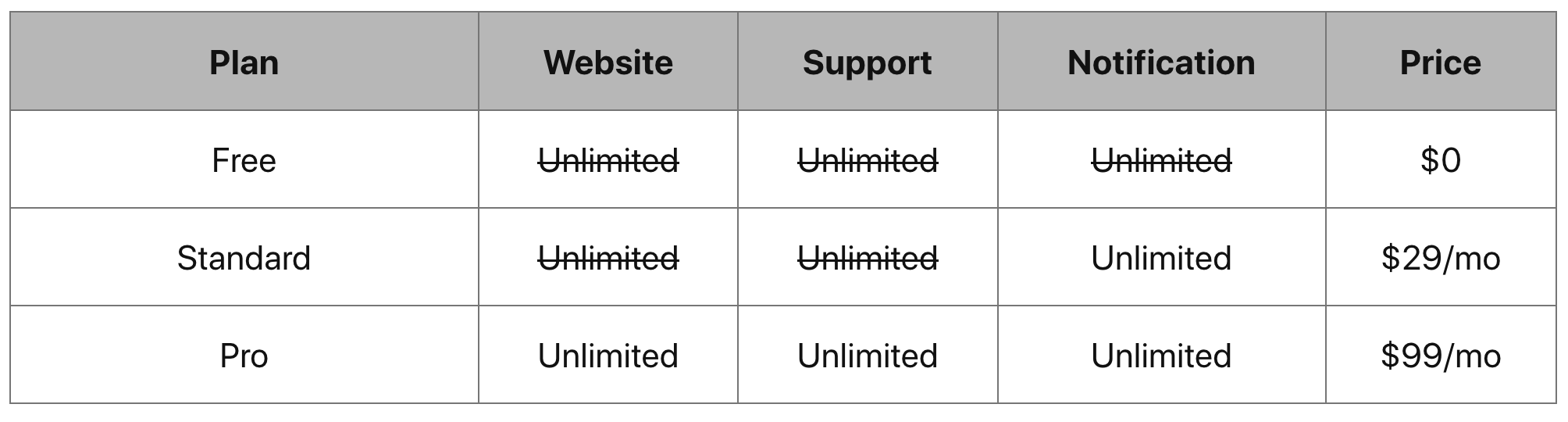
- Merge cells – combine cells horizontally with colspan and vertically with rowspan to build complex layouts.
- Style every cell individually – or set styles globally for the whole header and body.
- Responsive controls – set column widths, alignment and padding per device (desktop, tablet, mobile).
- Lightweight – loads a single small stylesheet and no JavaScript on the front end.
- Works with Elementor (free) – Elementor Pro is not required.
Free features
Table structure
- Unlimited table header cells and body cells
- Add a new row anywhere with a single toggle
- ColSpan (merge columns) for header and body cells
- RowSpan (merge rows) for body cells
- Custom column width per header cell, with responsive width for tablet and mobile
- Dynamic tags support for cell text (pull content from custom fields, post data and more)
- Import and export tables as Elementor templates to reuse them across pages and websites
Per-cell styling
- Text alignment and vertical alignment
- Text color and background color
- Text decoration (underline, overline, line-through)
- Cell padding
Global table styling
- Inner cell padding and table border (style, width, color)
- Header style: alignment, vertical alignment, text color, background color, typography, word break
- Body style: alignment, vertical alignment, text color, link color, link hover color, typography, background color, word break
- Striped rows with secondary background and text colors for better readability
Pro features: build richer, fully responsive Elementor tables
Upgrade to Table Addons Pro for Elementor when your tables need more than text:
- Auto Responsive (Card Style) – the easiest way to build a true Elementor responsive table. On mobile, each row turns into a stacked card and every value is labelled with its column header, so wide tables stay readable on small screens with no horizontal scrolling. Style the card titles (text color, background, typography, width and height).
- Icon cells – show Font Awesome or SVG icons (perfect for ✔ / ✘ feature comparison tables) with custom icon size.
- Icon + Content cells – an icon next to text, with icon position, spacing and size controls.
- Button cells – add call-to-action buttons with link, icon, icon position, custom ID, and full button styling (colors, typography, border, border radius, padding, per-cell background).
- Link cells – clickable text links with Elementor’s link options.
- Image cells – add images with image size, width, min/max width, height and border radius controls.
- Rich Text Editor (WYSIWYG) cells – formatted text, lists and inline links inside body cells and header cells.
- Premium support and updates.
👉 Upgrade to Table Addons Pro for Elementor
What can you build?
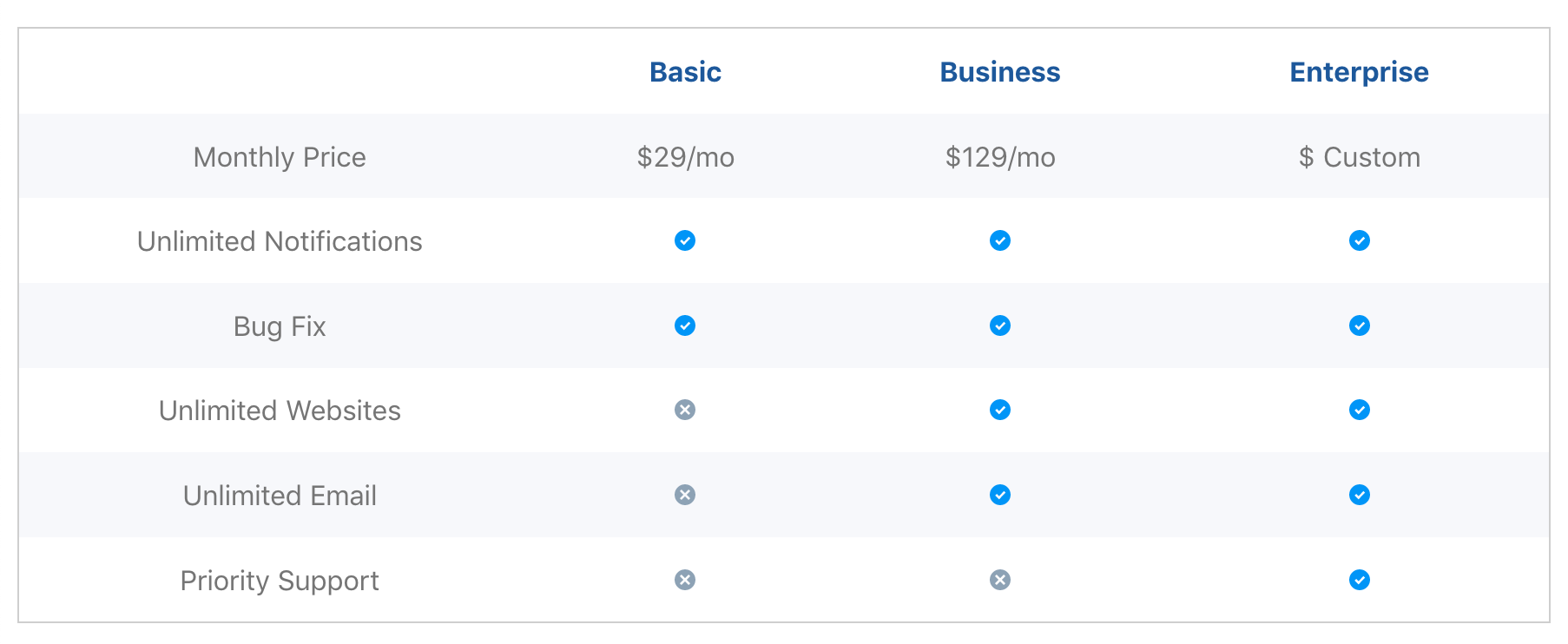
- Pricing tables and plan comparison tables
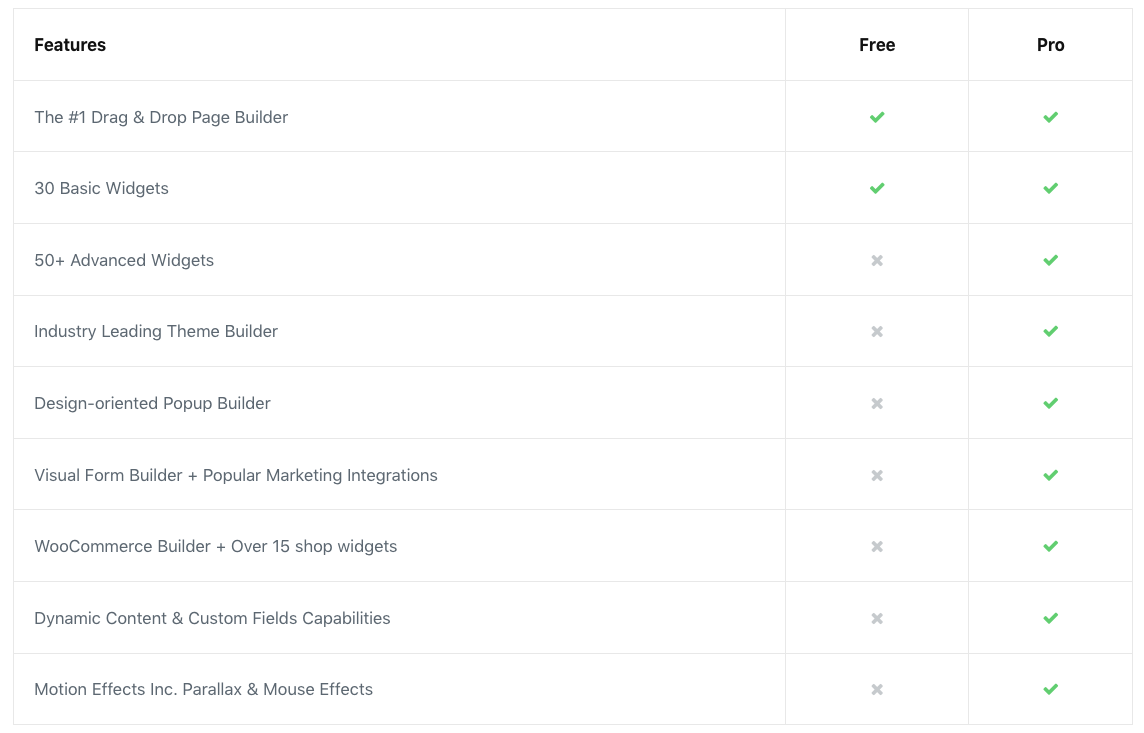
- Product and feature comparison tables with ✔ / ✘ icons (Pro)
- Specification and size charts
- Class, event and opening-hours schedules
- Price lists and menus
- Sports, results and ranking tables
- Any data table you need on an Elementor page
How to create a responsive table in Elementor
- Install and activate Elementor and Table Addons for Elementor.
- Edit a page with Elementor and search the widget panel for Table.
- Drag the Table widget onto the page.
- Under Table Header, add one item for each column.
- Under Table Body, add cells. Turn on New Row on the first cell of each new row.
- Use Advanced Settings on any cell to set the column span or row span, alignment, colors and padding.
- Open the Style tab to set borders, typography, striped rows and colors.
- Switch Elementor’s device mode to set responsive column widths and alignment for tablet and mobile. With Pro, enable Auto Responsive (Card Style) for a stacked mobile layout.
Free Elementor table templates
Download a ready-made table and import it into Elementor:
- Sample table 1 – JSON file
- Sample table 2 – JSON file (requires Font Awesome to be active)
- Sample table 3 – JSON file
- Sample table 4 – JSON file
👉 Browse premium pre-designed Elementor tables
How to import a table template
- Download a JSON file from the links above.
- In your WordPress dashboard, go to Templates > Saved Templates (Elementor > My Templates in older versions).
- Click Import Templates, choose the JSON file and click Import Now.
- Edit a page with Elementor, click the folder icon (Add Template), open My Templates and insert the table.
The sample tables are also listed under Elementor Table in your dashboard.
Translation ready
All text is translatable. A Bengali (bn_BD) translation is included, and you can help translate the plugin into your language on translate.wordpress.org.
Privacy policy
Table Addons for Elementor can send diagnostic data to HeliumWP (insight.heliumwp.com) to help us troubleshoot problems faster and improve the plugin.
Usage data is only sent weekly after you click "Allow" on the admin notice. It includes server information (PHP, MySQL, server and WordPress versions), the plugins and themes list, the site URL, name, language and locale, and the administrator’s name and email address.
If you choose "Submit & Deactivate" in the optional feedback form when deactivating the plugin, the reason you select, any details you enter and the same site information are sent. "Skip & Deactivate" sends nothing.
Learn more in our privacy policy.
Capturas
Instalación
Automatic installation
- In your WordPress dashboard, go to Plugins > Add New Plugin.
- Search for Table Addons for Elementor.
- Click Install Now, then Activate.
- Make sure Elementor is installed and active.
- Edit a page with Elementor and search the widget panel for Table.
Manual installation
- Download the plugin zip file.
- Upload the
table-addons-for-elementorfolder to the/wp-content/plugins/directory, or upload the zip in Plugins > Add New Plugin > Upload Plugin. - Activate the plugin from the Plugins menu.
- Find the Table widget in the Elementor widget panel.
Installing Pro
Table Addons Pro for Elementor is an add-on: keep this free plugin active, then upload and activate the Pro plugin and enter your license key under Elementor Table > License Settings.
FAQ
-
How do I add a table in Elementor?
-
Install and activate this plugin, edit your page with Elementor, search the widget panel for "Table" and drag the Table widget onto the page. Add your columns under Table Header and your cells under Table Body. See "How to create a responsive table in Elementor" above for step-by-step instructions.
-
Does Elementor have a built-in table widget?
-
Elementor does not include a dedicated table widget. Table Addons for Elementor adds one, so you can build tables in Elementor visually instead of pasting HTML into a text widget.
-
Do I need Elementor Pro?
-
No. The Table widget works with the free version of Elementor. Elementor Pro is not required.
-
Is the Elementor table responsive?
-
Yes. Tables are full width by default, and you can set column widths, text alignment and padding separately for desktop, tablet and mobile using Elementor’s responsive controls. For wide tables, the Pro version adds Auto Responsive (Card Style), which turns each row into a stacked, labelled card on mobile so visitors never need to scroll sideways.
-
Can I merge cells in an Elementor table?
-
Yes. Open a cell’s Advanced Settings and enable Column Span to merge columns or Row Span to merge rows, then set how many cells to span.
-
Can I style individual cells, rows or columns?
-
Yes. Each cell has its own alignment, vertical alignment, text color, background color, text decoration and padding. You can also style the whole header and body globally, add borders and enable striped rows.
-
Yes, with Table Addons Pro for Elementor. Pro adds Icon, Icon + Content, Button, Link, Image and Rich Text Editor (WYSIWYG) cell types. The free version supports text cells (including simple HTML) and dynamic tags.
-
Can I make a pricing or comparison table?
-
Yes. Use colspan and rowspan for grouped headings, striped rows for readability, and per-cell colors to highlight a recommended plan. Pro adds ✔ / ✘ icons and call-to-action buttons, which are ideal for pricing and feature comparison tables.
-
Can I use dynamic content in table cells?
-
Yes. Cell text supports Elementor dynamic tags, so you can pull values from custom fields, post data and other dynamic sources available on your site.
-
Is there a limit on the number of tables, rows or cells?
-
No. You can create as many tables as you like, with as many rows, columns and cells as you need.
-
Can I copy a table to another page or website?
-
Yes. Save the table (or the section containing it) as an Elementor template, export it as a JSON file and import it on any site that has Elementor and Table Addons for Elementor installed.
-
Will it slow down my website?
-
No. On the front end the plugin loads one small stylesheet and no JavaScript, and tables are rendered as standard HTML.
-
Does it work with my theme?
-
Yes. The plugin works with any theme that supports Elementor, including Hello Elementor, Astra, GeneratePress, OceanWP and Kadence.
-
What happens to Pro cells if my Pro license expires or I deactivate Pro?
-
If your license expires, all Pro features keep working; you just stop receiving updates and premium support until you renew. If you deactivate the Pro plugin, Pro cell content stays saved in your page but is not shown until Pro is active again.
-
Where can I get help?
-
Read the documentation, post in the support forum, or contact us. Pro customers get premium support.
Reseñas


Colaboradores y desarrolladores
"Table Addons for Elementor – Responsive Table Widget" es un software de código abierto. Las siguientes personas han colaborado con este plugin.
Colaboradores
"Table Addons for Elementor – Responsive Table Widget" ha sido traducido a 1 idioma local. Gracias a los traductores por sus contribuciones.
Traduce "Table Addons for Elementor – Responsive Table Widget" a tu idioma.
¿Interesado en el desarrollo?
Revisa el código , echa un vistazo al repositorio SVN o suscríbete al registro de desarrollo por RSS.
Registro de cambios
3.0.0
- Security: Hardened the data-sharing and deactivation-feedback requests (nonce and permission checks).
- Compatibility: Uses Elementor’s current widget registration API. Requires Elementor 3.5 or later.
- Compatibility: Requires PHP 7.4 or later and WordPress 5.2 or later.
- New: Translations for Arabic, Bulgarian, Danish, Dutch, French, German, Greek, Italian, Polish, Portuguese (Brazil), Romanian, Spanish, Swedish and Turkish, plus an updated Bengali translation.
- Tweak: Clearer wording across the widget, settings page and admin notices (e.g. "Advanced Settings", "Column Span", "Row Span").
- Tweak: Plugin is now maintained by HeliumWP; links and support moved to heliumwp.com.
- Tweak: Rewritten plugin description, features list and FAQ.
- Fix: "Inner Cell Padding" and Pro notice labels can now be translated.
- Fix: Uninstalling the plugin now removes its settings and scheduled events.
- Removed: Unused bundled tracking SDK and empty script files.
2.1.6
- Other: Compatible with WordPress 6.9.4
- Other: Compatible with Elementor 3.35.7
2.1.5
- Other: Compatible with WordPress 6.8.3
- Other: Compatible with WooCommerce 10.3.5
2.1.4
- New: Word Break style option added
2.1.3
- Fixed: Security issue
2.1.2
- Fixed: Word-breaking issue
2.1.1
- Fixed: Icon fill color issue
2.1.0
- Tweak: Elmentor library update
- New: Vertical align option
- New: Text and Background color option for each cell
- New: Cell padding option for each cell
- New: Introduce pro version
1.4.0
- Fixed: Elmentor deprecated library update
1.3.0
- Elmentor icon update
1.2.0
- Elmentor deprecated class update
1.1.0
- Responsive width field added
1.0.1
- Dynamic field added
1.0.0
- Initial version of the plugin.